


Capitolo 3: Robot Skills for Referees
Lesson 2: Robot Skills Scoring

Learning Objectives:
- Identify how scoring objects are evaluated in Robot Skills.
- Identify when a Robot Skills score should be recorded as zero.
In Lesson 1, you learned how a Robot Skills Match is structured. In this lesson, you will learn how those matches are scored. The scoring objects are the same Pins, Cups, and Toggles covered in previous chapters, but because a Robot Skills Match is played by one team trying to score as many points as possible, a few scoring rules work differently than they do in a Head-to-Head Match.
Robot Skills scoring is defined in rule <RSC3> of the Game Manual. The points and conditions below come straight from that rule, which is always your official reference if a situation is unclear.
Robot Skills Scoring
A team earns points based on the scoring objects and robot position on the field when the match ends.
| Scoring Item | Points |
|---|---|
| Each Red or Blue Pin Placed in a matching-color Quadrant or in the Midfield | 5 points |
| Each Owned Yellow Pin Placed in a matching-color Quadrant or in the Midfield | 10 points |
| Robot in the Midfield at the end of the match | 8 points |
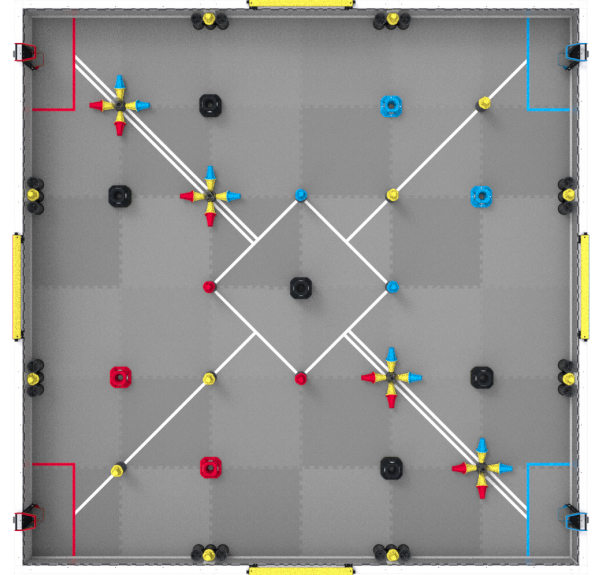
The color of a Quadrant is determined by the color of the Alliance Goal in that Quadrant. In this example, the Blue Alliance Goals can be seen in the upper Quadrant (Blue Quadrant 1) and the right Quadrant (Blue Quadrant 2), meaning that these are both Blue Quadrants.
How Robot Skills Scoring Differs from Head-to-Head Matches
You already know how to score Pins and the robot Midfield position from a previous chapter. Here is what changes in Robot Skills:
| Game Element | Head-to-Head Match | Robot Skills Match |
|---|---|---|
| Pins that Can Be Scored | Only its own Alliance-colored Pin or Yellow Pins | Any color Pin (red, blue, and yellow) |
| Autonomous Bonus | Available | Not part of the score |
| Pin Contact | Robot contact does not matter when scoring Pins. | Pins contacting a Robot at the end of the Match are worth no points. |
| Toggles | Sets Ownership of Yellow Pins in that Quadrant | Must match the color of the Quadrant for the team to own the Yellow Pins in that Quadrant. |
Teams can participate in up to three Driving Skills Matches and up to three Autonomous Coding Skills Matches. Their Skills Ranking at the event is determined by the sum of their highest Driving Skills score and highest Autonomous Coding Skills score. Read rule <T22> in the Tournament section of the Game Manual to learn more about Skills Ranking at events.
Robot Skills Match Scoring Example
Robot Skills scoring is identical for both match types.
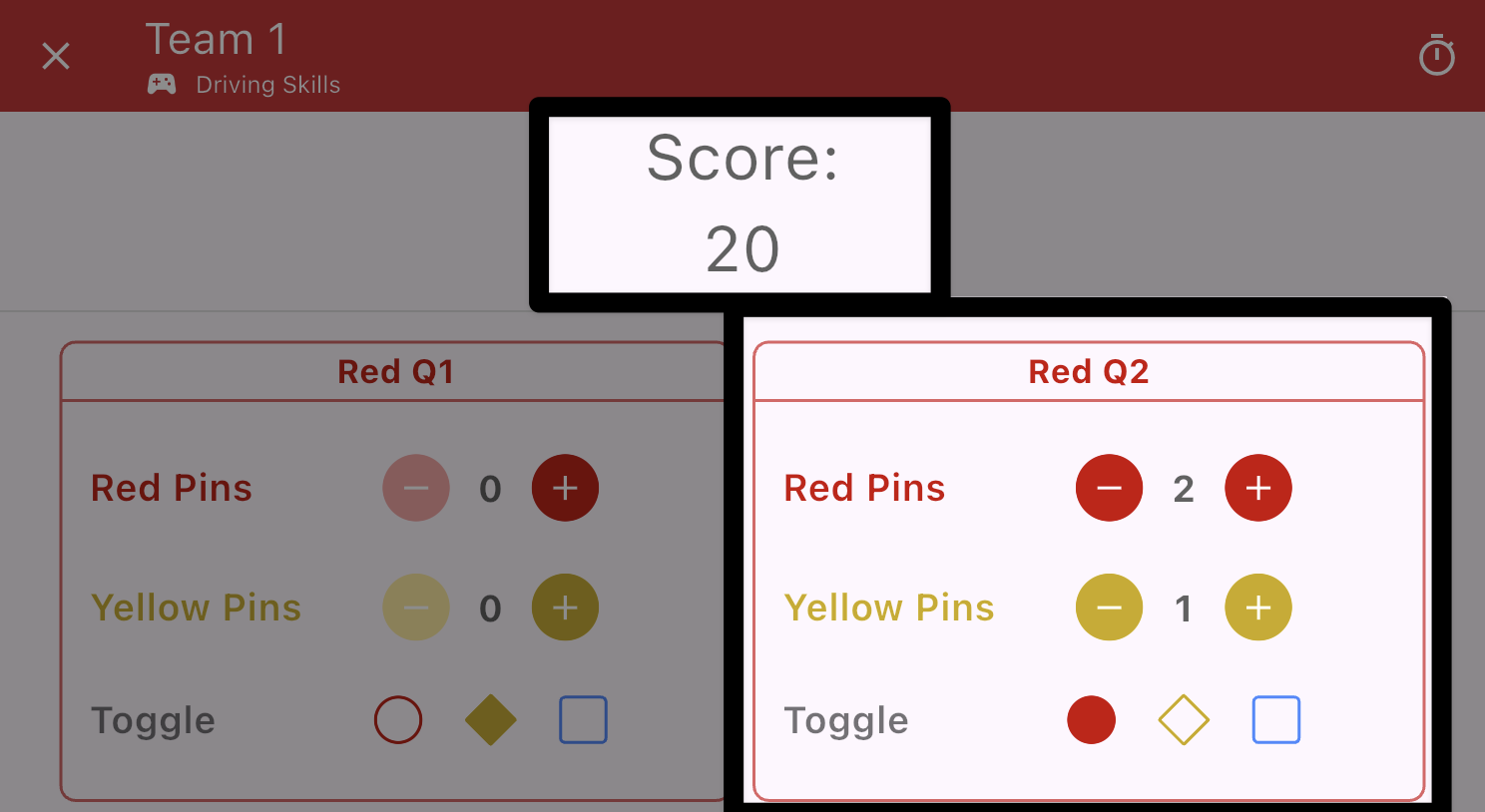
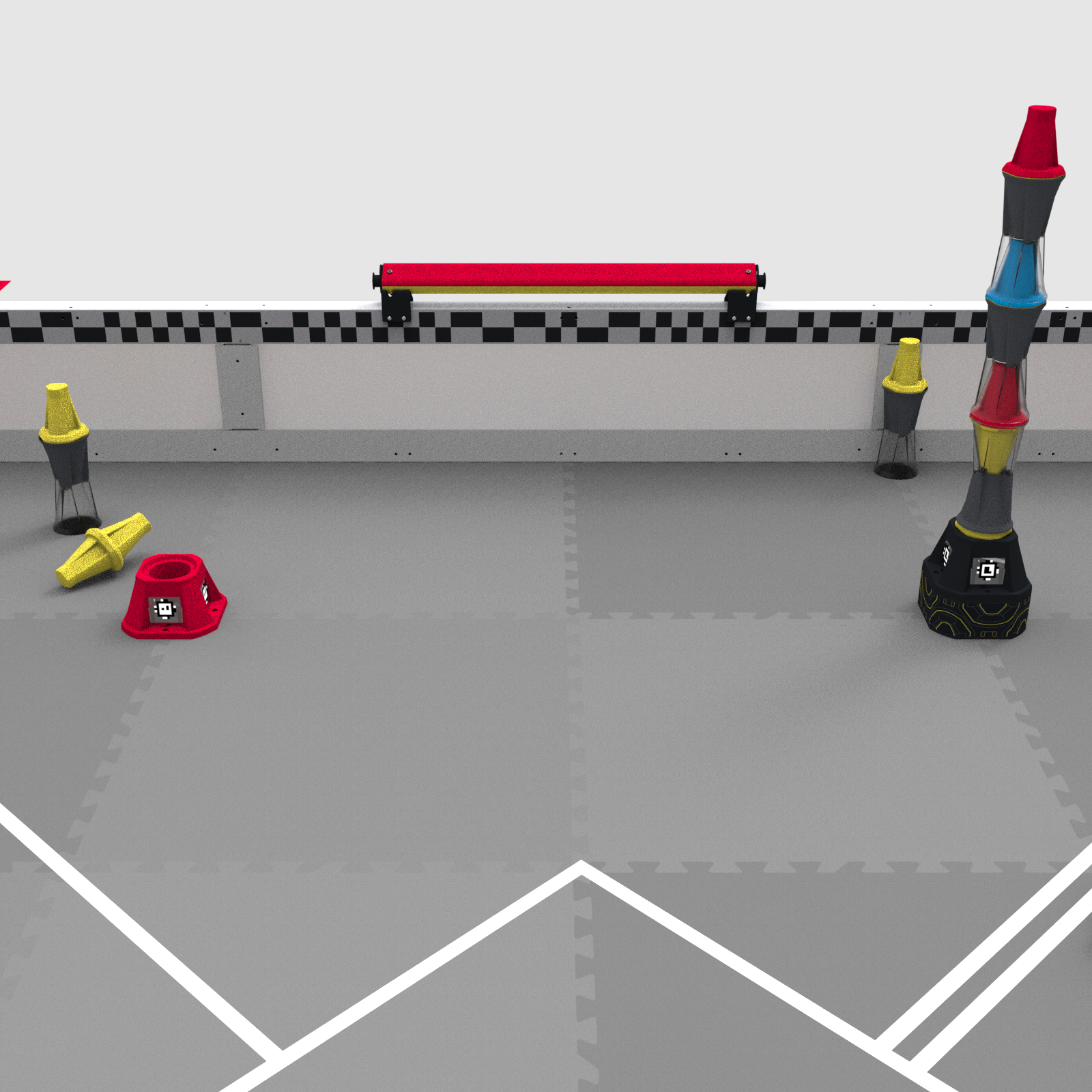
In this example, you are evaluating Red Quadrant 2 at the end of the match.
Scenario
- The Neutral Goal has four visible Pins – 2 Red, 1 Blue, and 1 Yellow.
- The Red Alliance Goal has zero Pins Placed.
- The Toggle for this Quadrant is set to Red.
When a Score Is Recorded as Zero
Most of the time, you will record the points the team earned. However, when a team receives a Disqualification, the entire score is recorded as zero regardless of what is on the field.
A Disqualification only affects the match in which it occurs. Each Robot Skills Match is scored on its own, so a zero in one match does not erase any of the team's other scores. You can review the full details in rules <GG6> and <RSC1> of the Game Manual. You will learn how to identify violations and how the different types could lead to a Disqualification in a later chapter.
You score Robot Skills Matches in the same VEX TM Mobile app you use for Head-to-Head Matches (see Chapter 2). The scoring works the same way, but because Robot Skills is an individual team competition, getting to the score screen is slightly different.
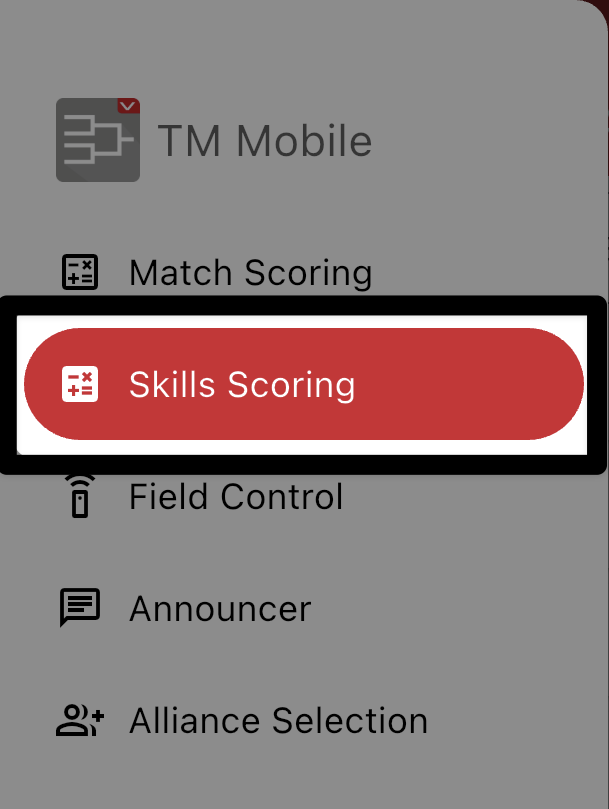
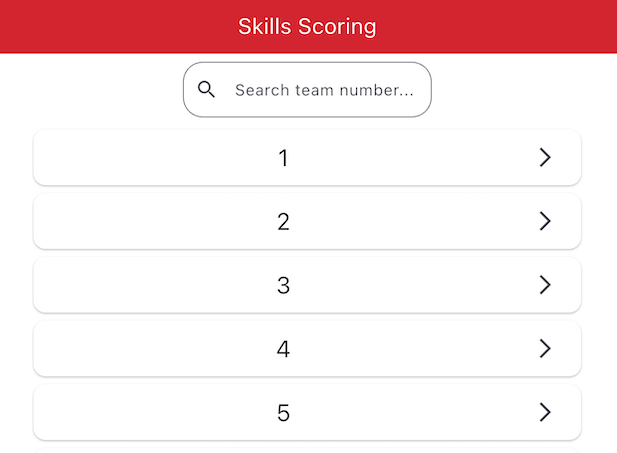
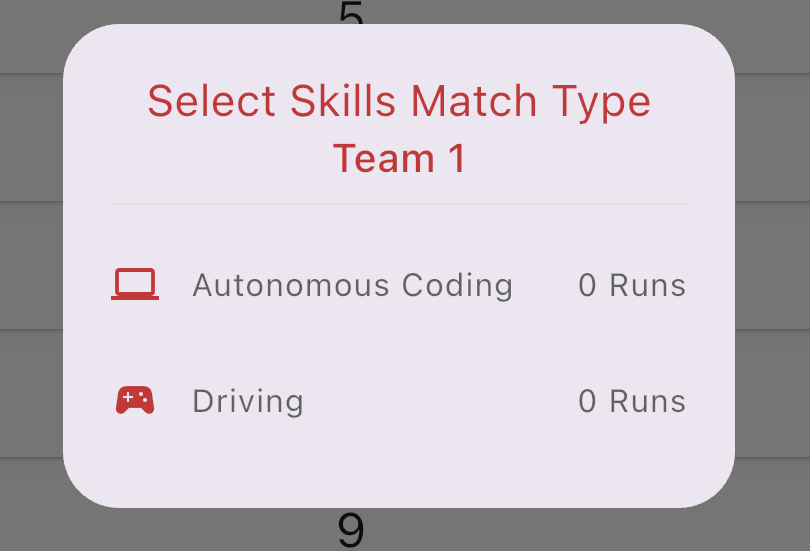
Once you select a team, the app asks you to choose the Match Type — Autonomous Coding or Driving.
You will see how many runs of each the team has recorded already. Because each team is limited to a set number of runs of each type, make sure you are scoring the correct type before continuing.
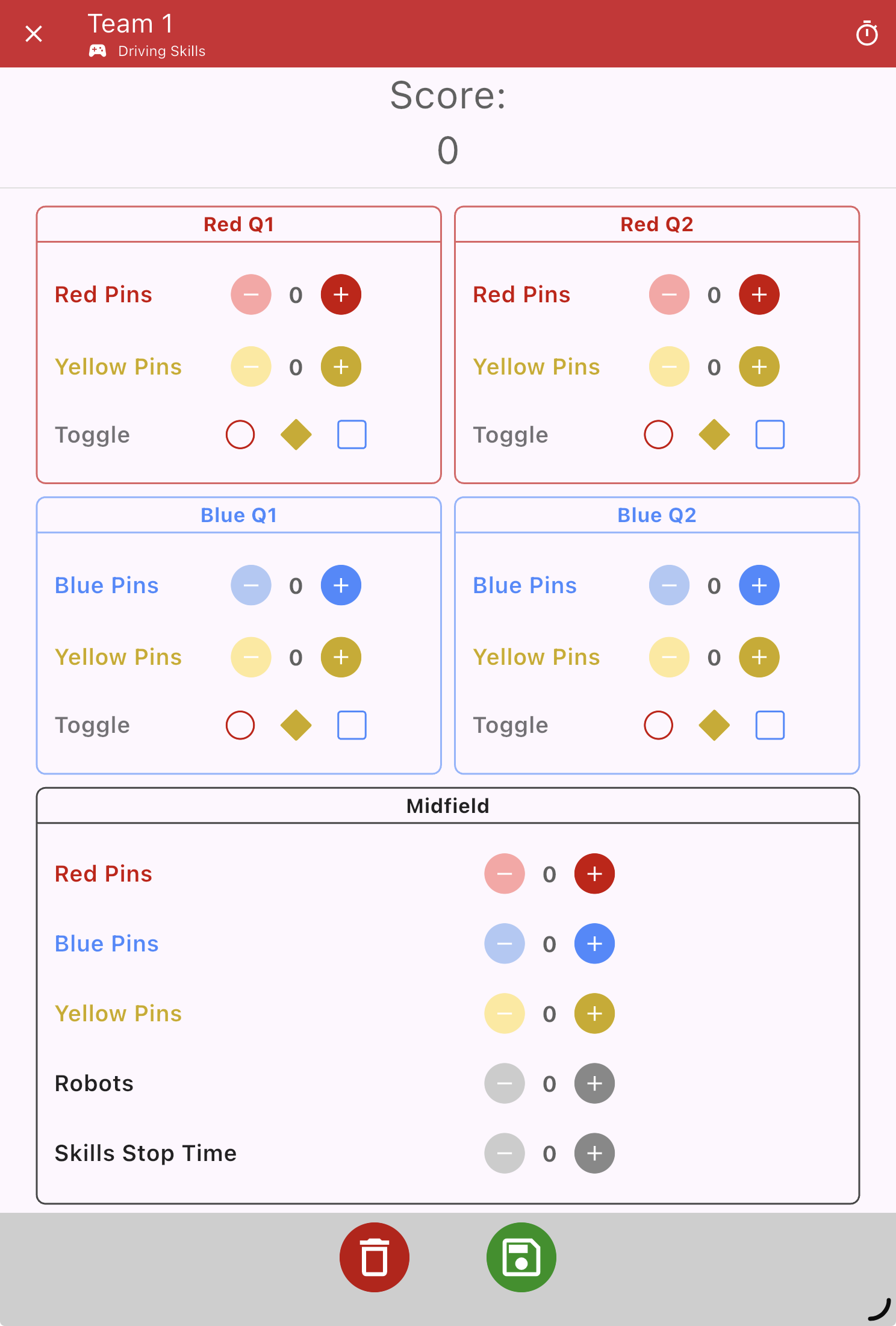
The score screen looks just like the Head-to-Head screen, only smaller and all on one page. Each Quadrant has a section.
Enter Pin counts with the − and + buttons and set each Toggle the same way you learned in Chapter 2.
At the bottom, enter the Skills Stop Time as a whole number of seconds. (You will learn about Skills Stop Time in the next lesson.)

As with a Head-to-Head Match, review the score with the team before you save.
Saving matters even more here: a saved Robot Skills score cannot be unlocked or changed — it is immediately recorded as one of that team's runs
Confirm the score is correct and agreed on, then select the green Save button.