บทที่ 2: Scoring Override
Lesson 4: Scoring with TM Mobile

Learning Objectives:
- Identify how to navigate to a match in the VEX TM Mobile app.
- Describe how to enter scores for a match in the app.
- Understand how to save a match score in the app.
In the earlier lessons of this chapter, you learned how scoring works in Override — what earns points, how to evaluate the field, and how the Autonomous Period is scored. This lesson is about the tool you will use to record those decisions: the VEX TM Mobile app, which runs alongside VEX Tournament Manager at an event.
At most events, the Event Partner will hand you a tablet with VEX TM Mobile already installed and connected to the event's Tournament Manager computer, so the matches you see in the app are the real matches for your field. This lesson covers how to use the app once you have that tablet in hand: finding your match, entering the score, and saving it.
Finding Your Match
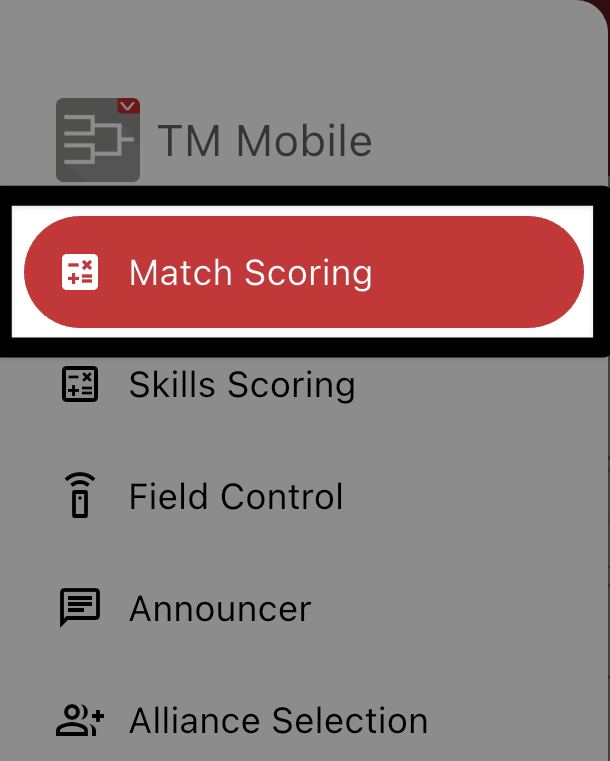
Before you can enter a score, you need to open the correct match in the app. VEX TM Mobile can score any match at an event, so the first step at the start of each match is making sure you are looking at the right one. Getting into the habit of confirming the match before you begin helps prevent the easy mistake of entering a score on the wrong match. The following steps walk through where to find the correct match.
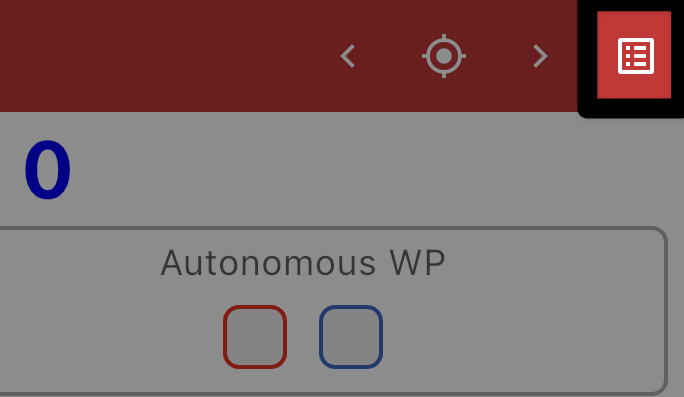
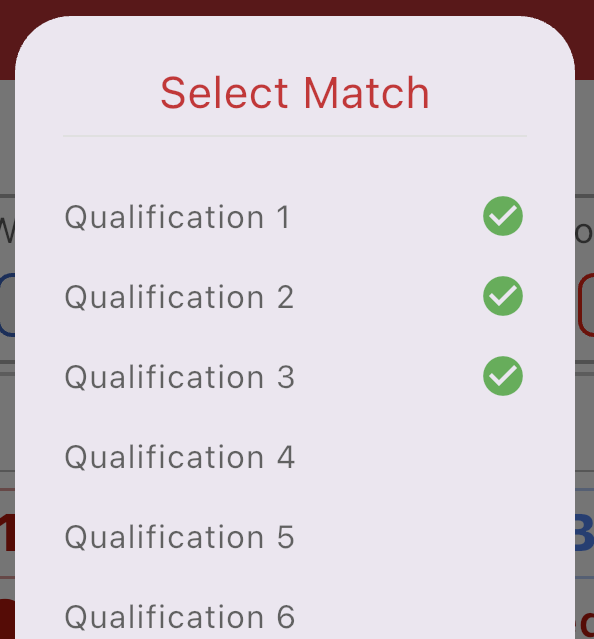
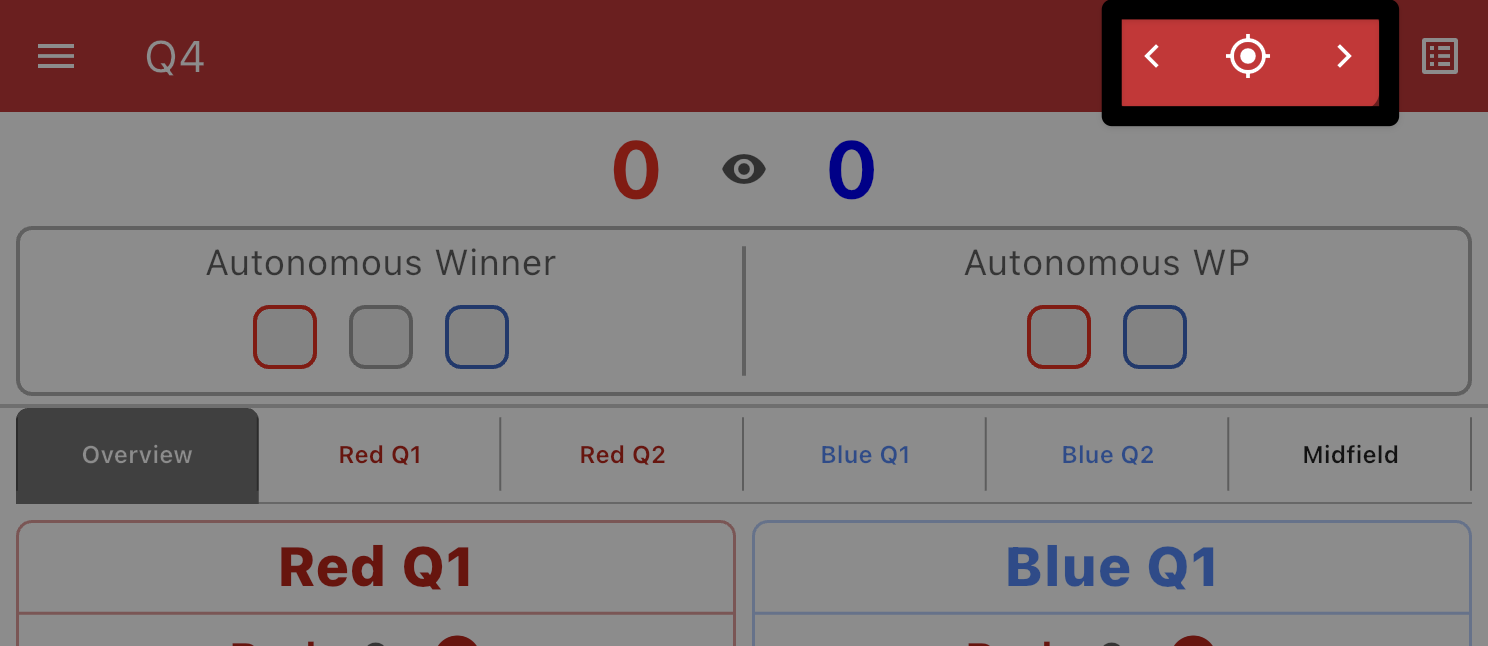
Select the match selector in the upper right corner of the Toolbar to open the list of all matches for the event.
Entering Scores
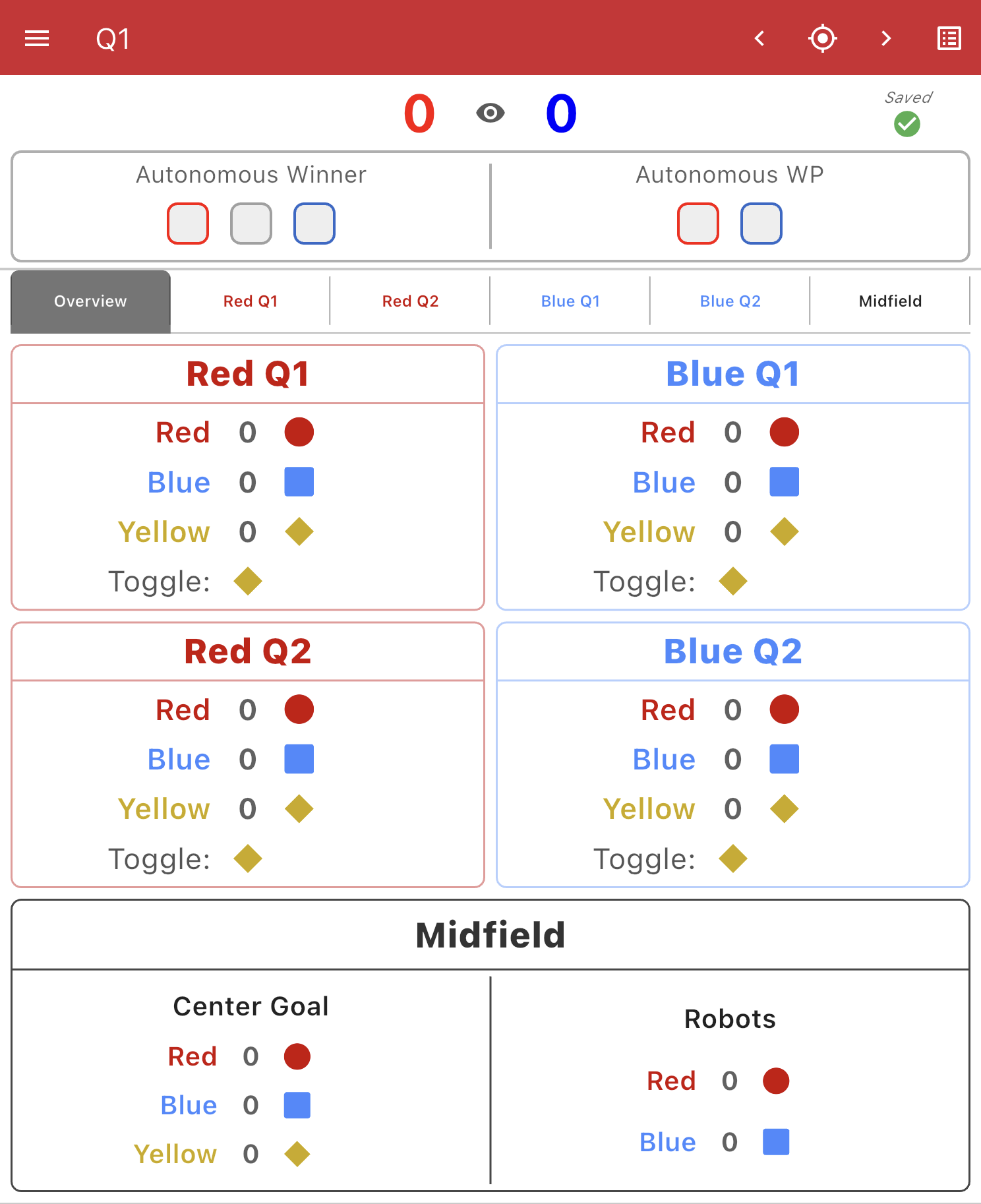
With the right match open, you are ready to record what you see on the field. The app breaks the field into sections, the four Quadrants and the Midfield. Entering a score is a matter of working through those sections one at a time and recording each count. The app handles the score calculations for you; your job is to enter accurate counts and Toggle states.
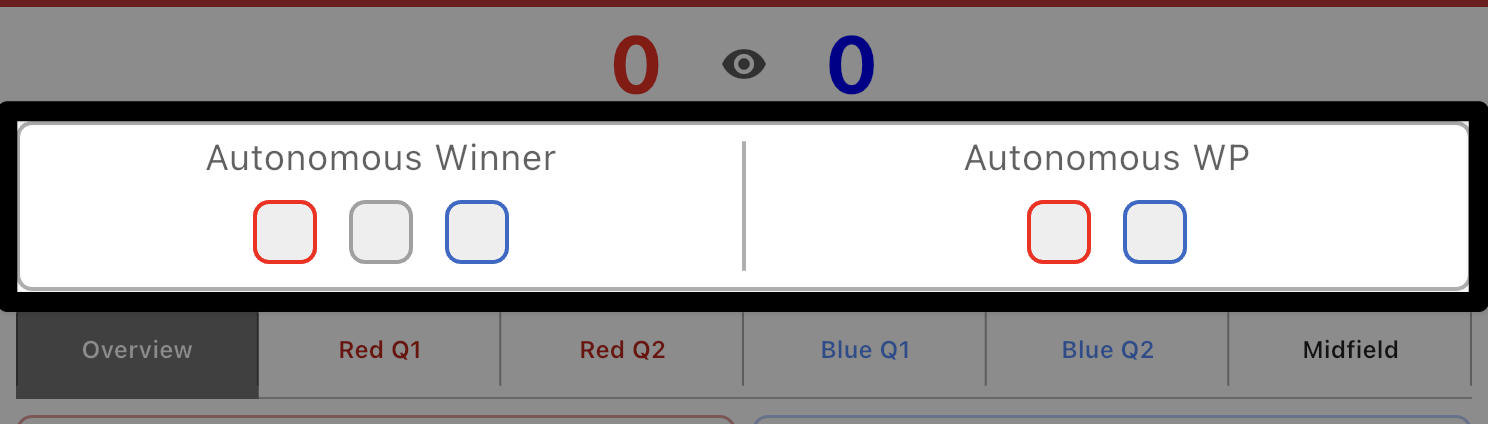
At the end of the Autonomous Period, you will award the Autonomous Bonus and Autonomous Win Point, based on the rules covered in the previous lesson.
For the Autonomous Bonus, select the alliance colored box for the winning alliance under the Autonomous Winner heading. If there is a tie, select the gray box.
In the Autonomous WP section, select the colored box for any and all alliances that met the Autonomous Win Point criteria.
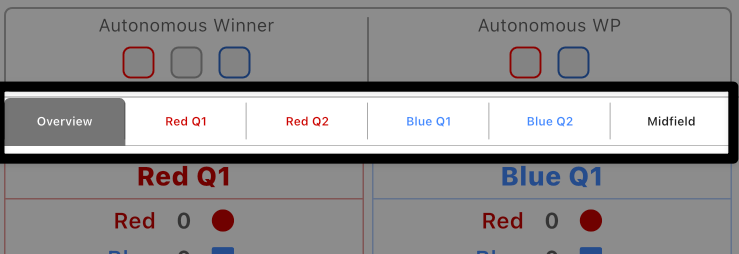
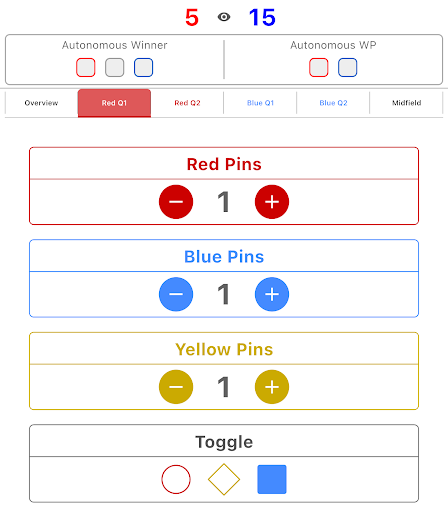
Within each Quadrant tab:
- Score Pins: Use the − and + buttons to set the count of Red, Blue, and Yellow Pins in that Quadrant.
- Set the Toggle: Select the colored shape that matches the Toggle's state — the red circle, the yellow diamond, or the blue square.
As you enter Pin numbers and set Toggles, the score at the top of the screen updates automatically, so you can check it against what you saw on the field.
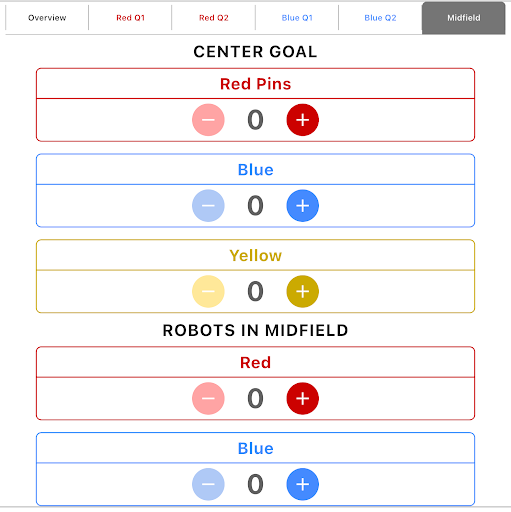
The Midfield tab works the same way, with two parts:
- Center Goal: Use the − and + buttons to set the count of Red, Blue, and Yellow Pins in the Center Goal.
- Robots in Midfield: Set the number of Red Alliance and Blue Alliance robots ending in the Midfield.
Example Entry and Quadrant
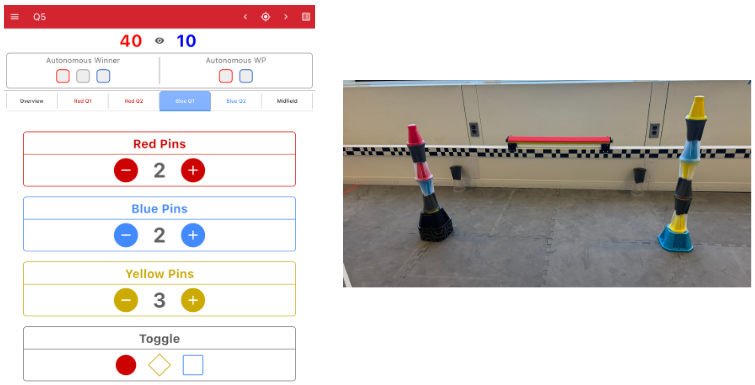
Every entry in the app maps directly to something you counted on the field. The example below shows a single Quadrant as it appears on the field, next to the matching entry in VEX TM Mobile.
This example for Blue Quadrant 1 shows:
- 2 Red Pins and 1 Blue Pin in the Neutral Goal.
- 3 Yellow Pins and 1 Blue Pin in the Blue Goal.
- The Toggle for this Quadrant is set to red.
Saving the Score of a Match
A saved score is the official score of the match. The moment you select Save, VEX TM Mobile sends the score to the event's Tournament Manager computer, and changing it afterward requires unlocking it. For that reason, save only after the score has been reviewed and agreed on — never save a score you are still working out.
Before you save, review the completed score with both teams, and with the Head Referee as needed, so everyone agrees with what is about to be recorded. This is part of the after match responsibilities you learned about in Chapter 1: confirm the result with teams before the field is reset, since once a team leaves the field they cannot appeal the result.
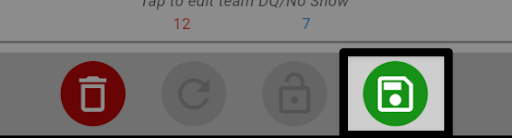
When the score is agreed on, select the green Save button on the bottom of the screen.
The match will then show a Saved confirmation at the top, and will appear with a green check in the full Match list, so the whole event can see it has been scored.
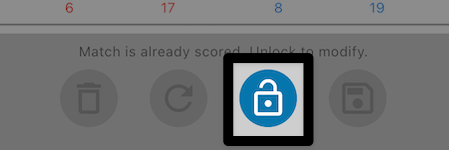
Once saved, the match is locked. A saved match shows the message "Match is already scored. Unlock to modify." at the bottom of the screen.
If a saved score needs to be corrected, select the Unlock button to modify the score. Once adjusted, you will need to save the score again.