Chapter 2: Scoring Teamwork Matches
Lesson 2: Scoring with TM Mobile

Learning Objectives
- Identify how to navigate to a match in the VEX TM Mobile app.
- Describe how to enter a Teamwork Match score in the app.
- Identify how to save a match score in the app.
In the earlier lessons of this chapter, you learned how scoring works in IQ Level Up — what earns points and how to evaluate the field after a match. This lesson is about the tool you will use to record those decisions: the TM Mobile app, which runs alongside VEX Tournament Manager at an event.
At most events, the Event Partner will hand you a tablet with TM Mobile already installed and connected to the event's Tournament Manager computer. The matches you see in the app are the real matches for your field. This lesson covers how to use the app once you have that tablet in hand: finding your match, entering the score, and saving it.
Finding Your Match
Before you can enter a score, you need to open the correct match in the app. TM Mobile can score any match at an event, so the first step at the start of each match is making sure you are looking at the right one. Getting into the habit of confirming the match before you begin helps prevent the easy mistake of entering a score on the wrong match. The following steps walk through where to find the correct match.
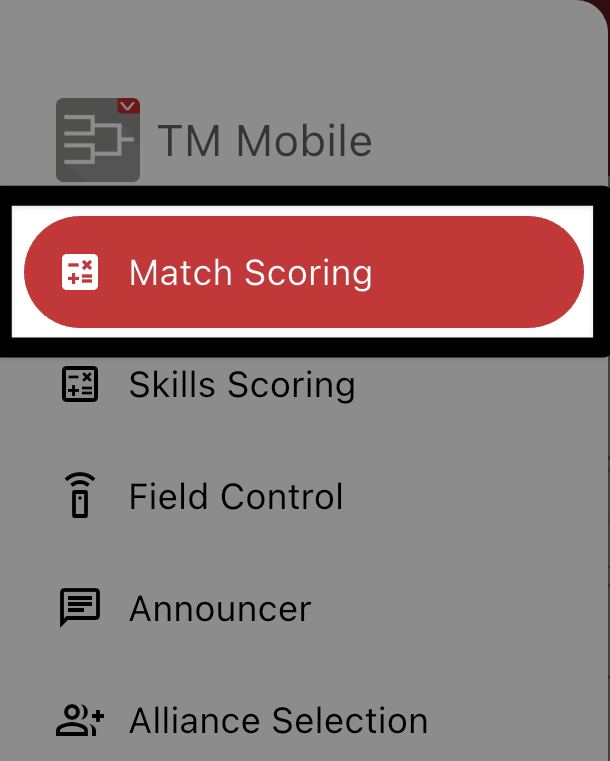
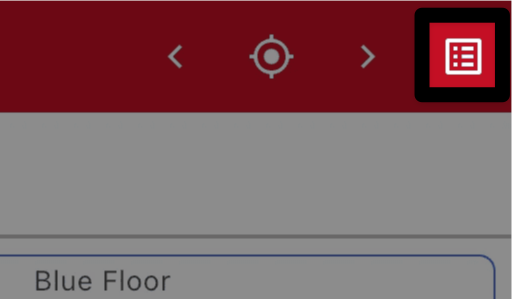
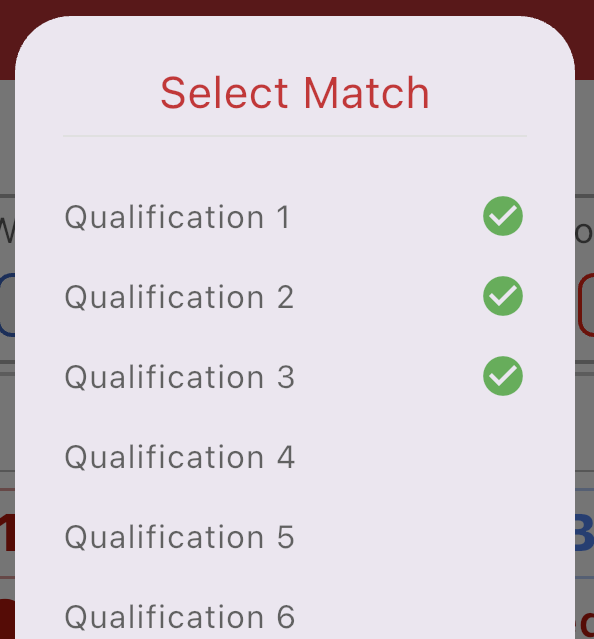
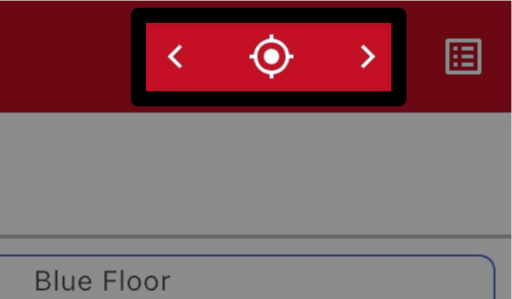
Select the match selector in the upper right corner of the Toolbar to open the list of all matches for the event.
Entering Scores
With the right match open, you are ready to record what you saw on the field. The app handles the score calculations for you; your job is to enter accurate counts.
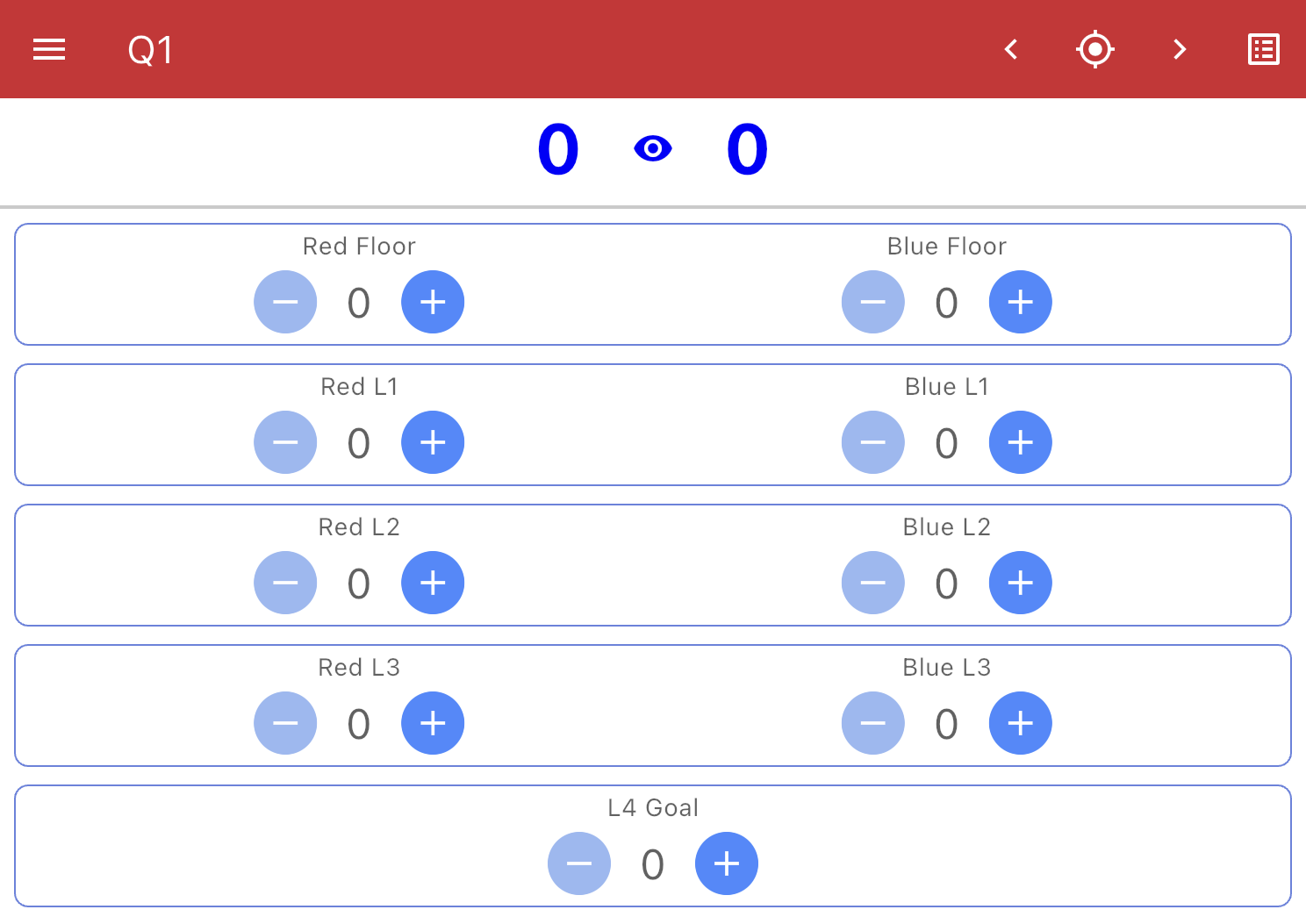
The scoring screen lists every goal with its own counter. Entering a score is a matter of working through those counters one at a time.
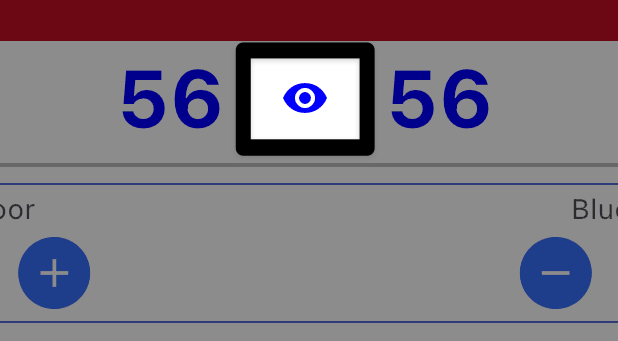
Note: The alliance receives the score shown on either side of the top of the screen. The score appears on both sides, but since there is only one alliance in a match, that alliance receives one score.
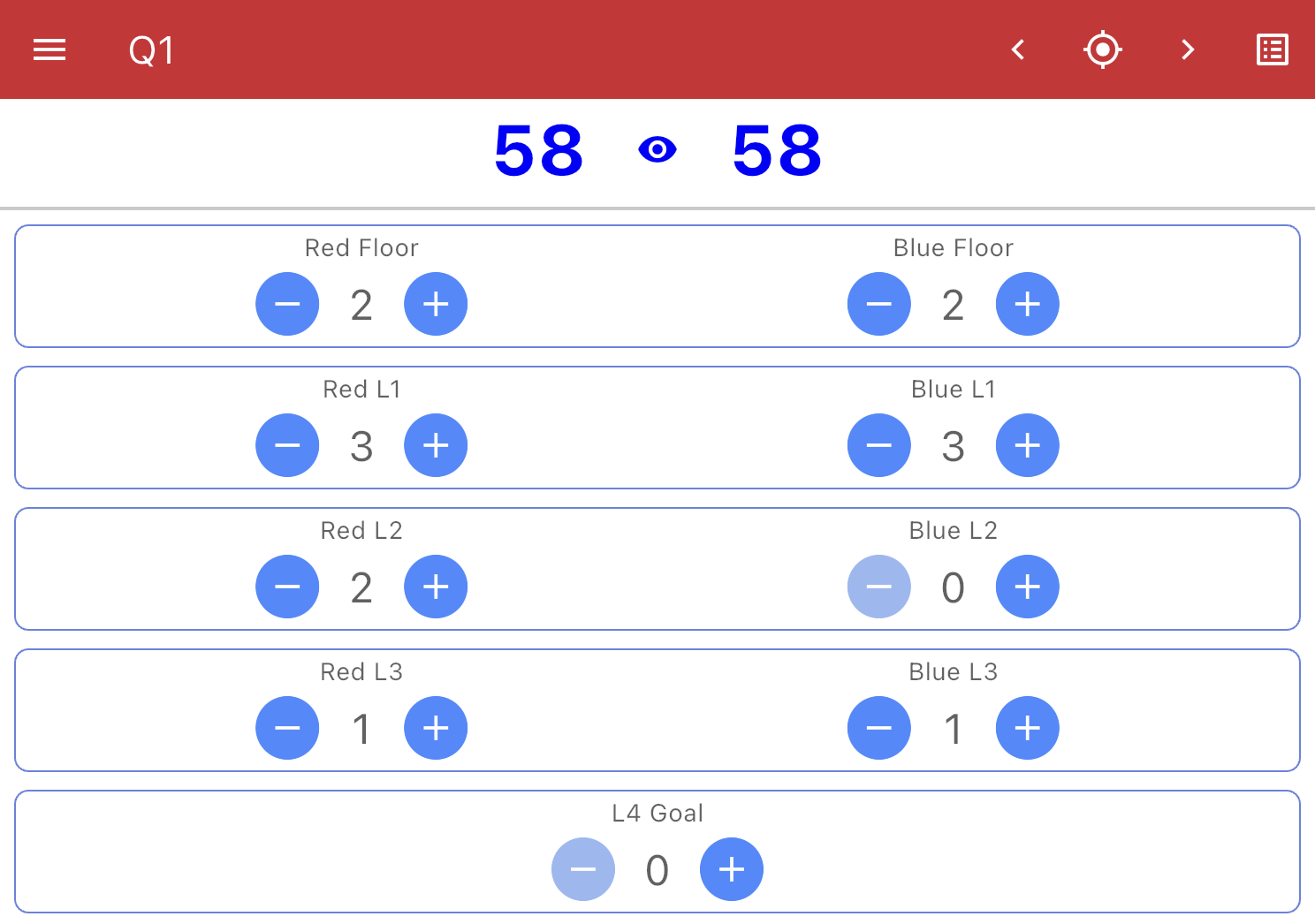
Each counter records the number of scoring Bean Bags in that goal.
Use the − and + buttons on each counter to set its value:
- Floor, L1, L2, and L3 each have two counters: the Red goal on the left and the Blue goal on the right. Enter the count of scoring Bean Bags in each.
- L4 Goal has a single counter below.
As you set each counter, the running score at the top of the screen updates automatically, so you can check it against what you saw on the field.
A Bean Bag counts toward a goal when it meets that goal's scoring criteria and either matches the goal's color or is yellow. A Bean Bag of the opposing color does not score in that goal and is not counted. For example, a red goal holding one red Bean Bag and one yellow Bean Bag is entered as 2; if a blue Bean Bag is also resting there, it does not score and is left out of the count.
Match Stop Time
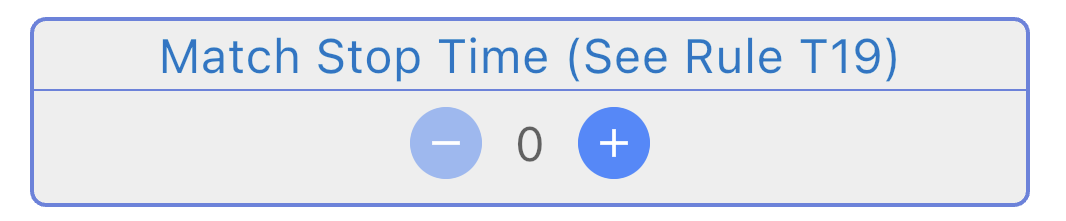
Below the goal counters is a Match Stop Time counter. Teams may choose to end a match early and let the referees know they intend to finish before time expires. They signal they are finished by stopping all robot motion and placing their controllers on the ground.
When they do this, the Scorekeeper Referee signals that the match is over and records the time still showing on the timer as the Match Stop Time.
What changes from match to match is whether that time affects an outcome: it is the deciding metric in a tiebreaker Finals Match for first place, while in other matches it can be recorded but may not change the result. The main thing for Scorekeeper Referees is to know this is something teams can request, and to stay aware of the clock so you can note the time remaining if an alliance ends early. For the full details, see <GG13> and the Match Stop Time definition in the Game Manual glossary.
Example Entry
Every entry in the app maps directly to a Bean Bag you counted on the field. The example below shows a Pyramid Goal as it appears on the field, next to the matching entry in VEX TM Mobile.
This example for Blue Pyramid Goal and Blue Floor Goal shows the following scored Bean Bags:
- 2 Bean Bags in the Floor Goal
- 2 Bean Bags on L1
- 3 Bean Bags on L2
- 1 Bean Bags on L3
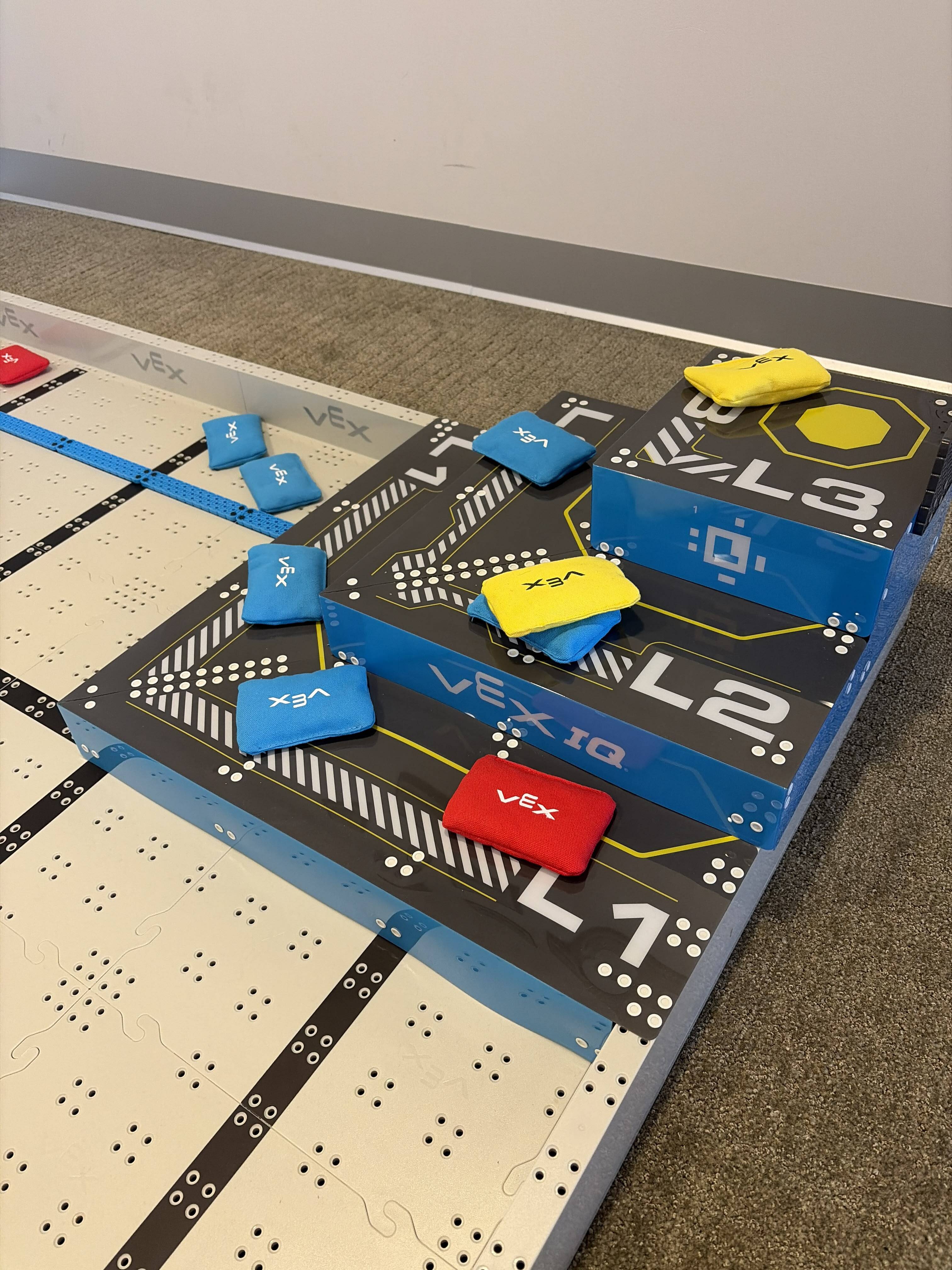
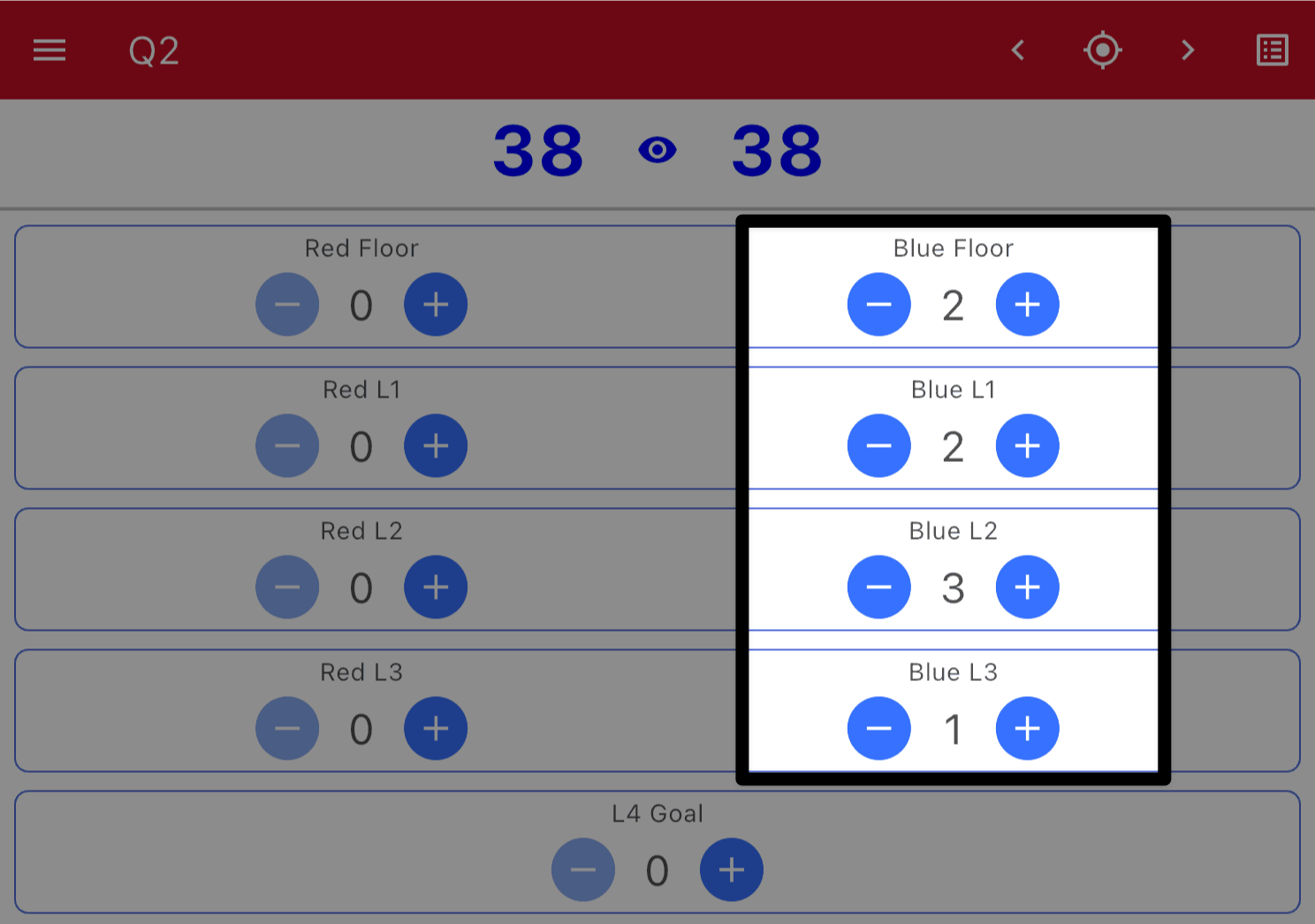
If needed, revisit the previous lesson for clarification on how the number of scored Bean Bags was determined.
Saving the Score of a Match
A saved score is the official score of the match. The moment you select Save, VEX TM Mobile sends the score to the event's Tournament Manager computer, and changing it afterward requires unlocking the match.. For that reason, save only after the score has been reviewed and agreed on — never save a score you are still determining.
Before you save, review the completed score with the teams, and with the Head Referee as needed, so everyone agrees on what is about to be recorded. This is part of the after-match responsibilities you learned about earlier in the course: confirm the result before the field is reset, because once a team leaves the field they cannot appeal the result.

When the score is agreed on, select the green Save button on the bottom of the screen.
The match will then show a Saved confirmation at the top, and will appear with a green check in the full Match list, so the whole event can see it has been scored.
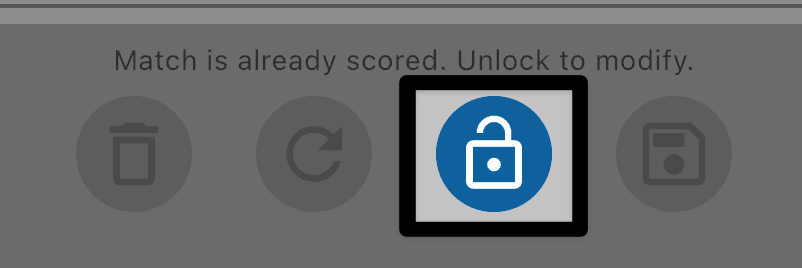
Once saved, the match is locked. A saved match displays "Match is already scored. Unlock to modify." at the bottom of the screen.
If a saved score needs to be corrected, select the Unlock button to modify the score. Once adjusted, you will need to save the score again.