


Turn Everyday Lessons into Exciting Events with VEX Classroom Games
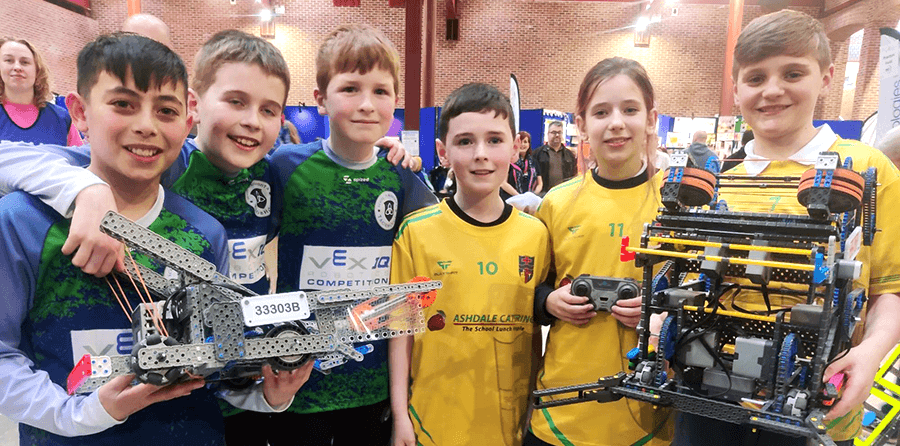
There is nothing quite like the energy of a VEX Robotics Competition. Students who have spent weeks iterating on a build or a coding project suddenly have an audience, a scoreboard, and a reason to explain exactly why their design works. Many of us want that experience for every student we teach, not only for the ones who are able to stay after school or travel to an event.
However, running a classroom competition involves quite a lot of logistics, including managing a competition field or two, timing matches, keeping everything running smoothly, and recording scores, all while managing a room full of students asking when their turn is, and why their robot stopped suddenly. All these details can make it difficult to focus on the more meaningful conversations about collaboration, coding, and engineering that we want to have with our students.
VEX Classroom Games is designed to remove the burden of logistics from classroom competition, so you can focus on your students. It gathers more than 100 classroom games across nine VEX platforms into one place. Each one has its rules, field setup, timer, scoring, standings, and awards already built in. Because the games are drawn from the lessons and activities students are already working with in the classroom, a competition becomes the natural next step in a unit rather than a separate event to plan from scratch.
Choose a Game That Fits Students’ Needs
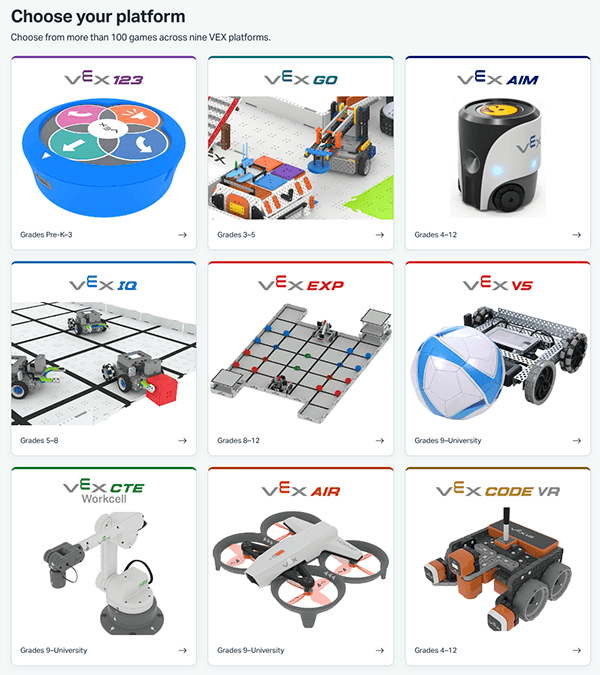
There are games for every VEX platform. The catalog has over 100 games, spanning the VEX Continuum, from VEX 123 through VEX GO, AIM, IQ, EXP, V5, CTE, and AIR, as well as VEXcode VR. Filters for competition format, such as High Score, Greatest Distance, Fastest Time, and Head-to-Head, and for how students control the robot, make it quick to find one that suits both a class’s skill level and the time you have available.
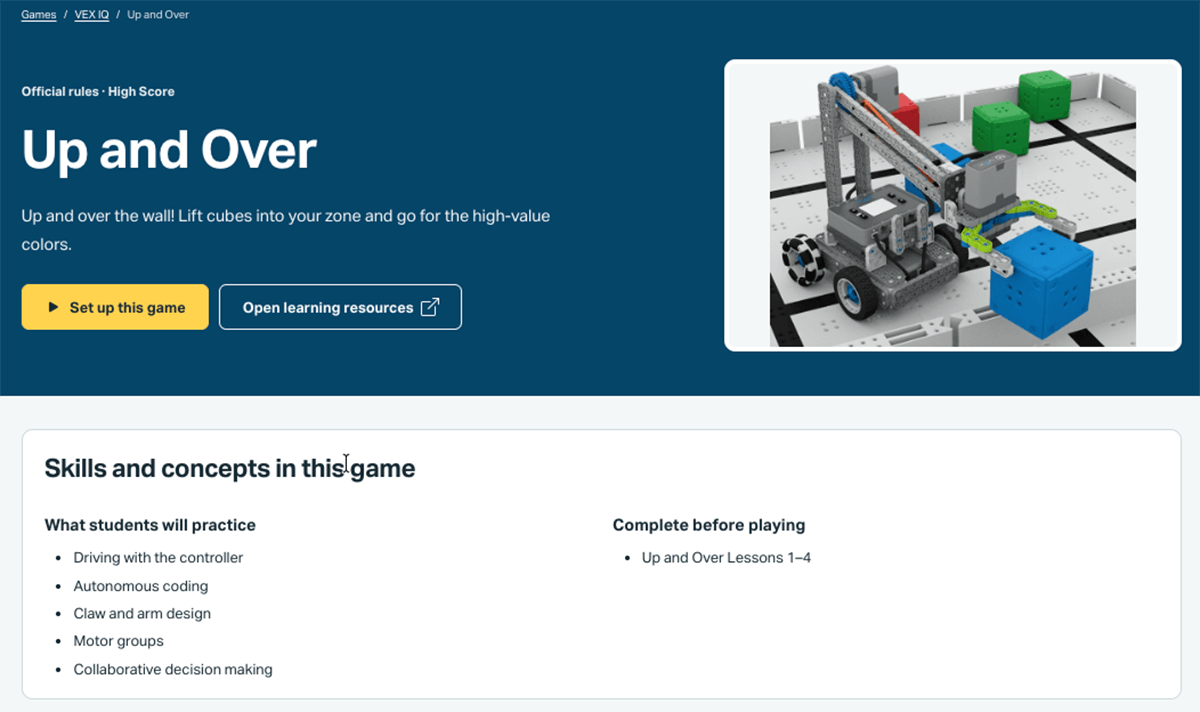
Each game page is written with easy planning in mind. The “Complete before playing” section names the lessons students should finish first. The VEX IQ game Up and Over, for example, points directly back to its STEM Lab lessons. “What students will practice” lists the skills and concepts the game puts to work, such as autonomous coding, claw and arm design, motor groups, and collaborative decision making.
Together, those two sections provide information for making a deliberate game choice. If a class needs more practice interpreting sensor data, or students need practice making collaborative decisions about a robot design, you can select a competition that asks for exactly that, knowing the instruction behind it is already in place.
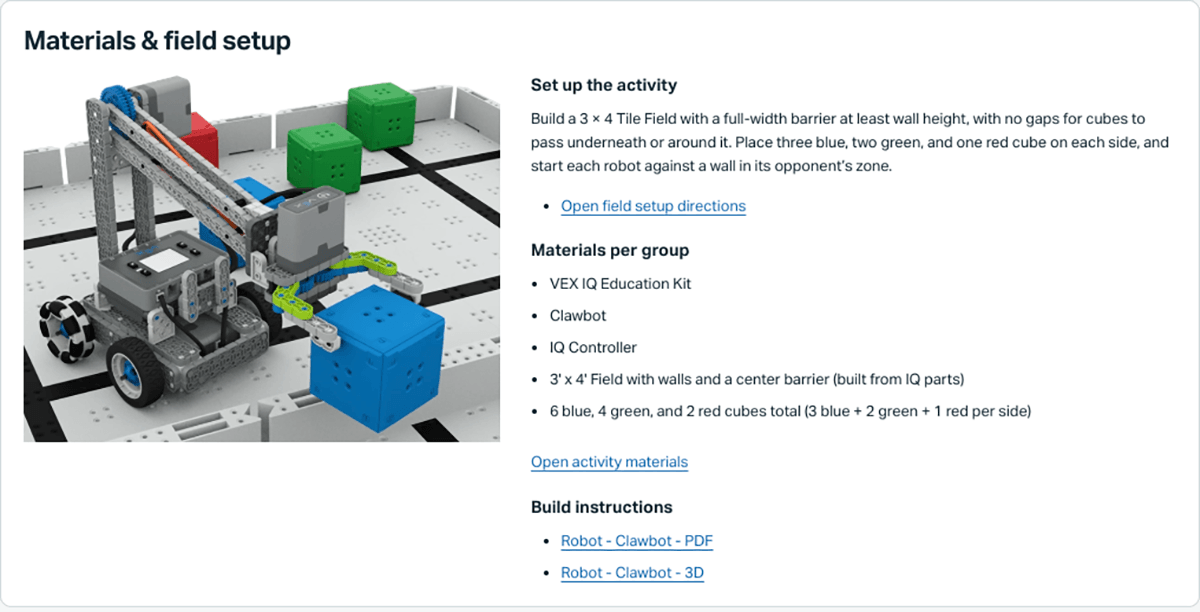
The Materials & field setup section provides a list of all needed materials, setup directions, build instructions, and a link to the original curricular activity all in one easy-to-access place, so no bouncing around between websites is needed.
Set Up an Event in Minutes
Once a game has been selected, setting up the game is quick and easy. Name the event, set up the timer and add in the teams. Whether students are playing a quick VEX GO Obstacle! game, where the fastest time to complete a course wins, or a complicated elimination game like VEX IQ Level Up – Teamwork Practice, this page does the work for you, even pairing students into alliances and building brackets so you don’t have to.
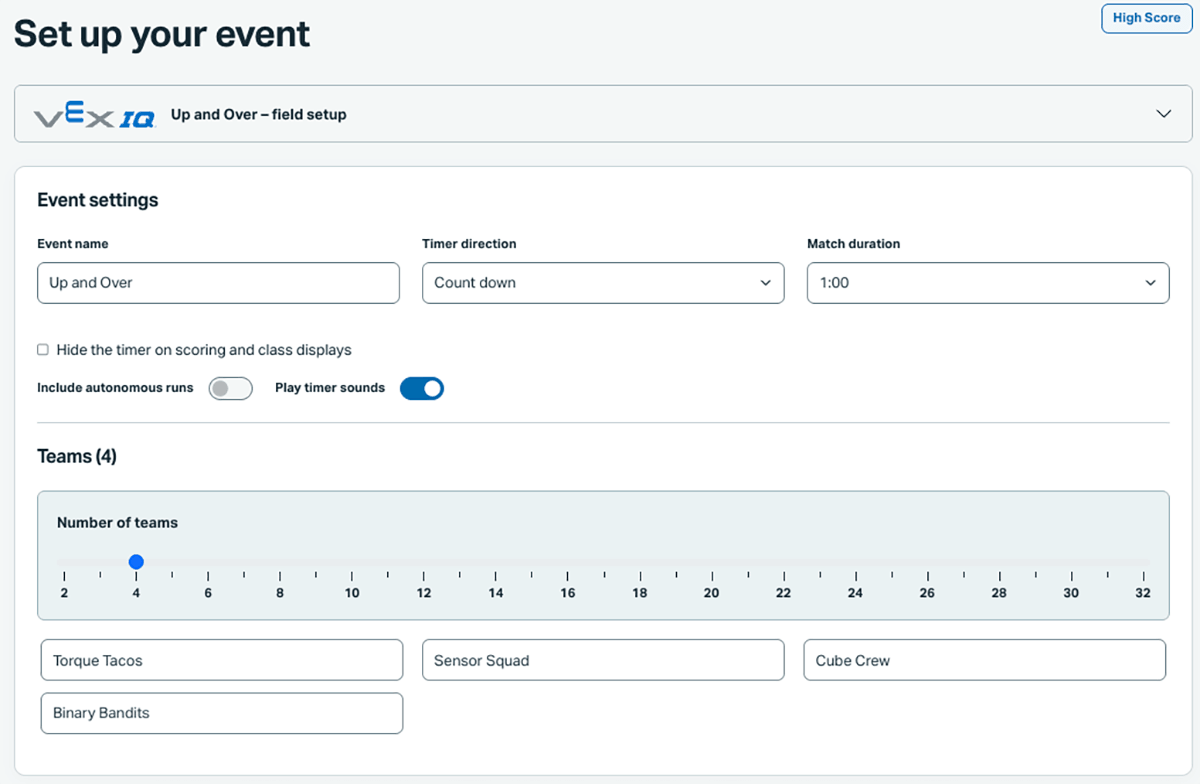
And, each event you create is saved in My Events for you to return to at any time. This means if your class session ends before all students have had a turn, all the teams, scores, and standings are saved and ready for you to access during the next class session. You can resume an event, review it to help in planning next steps for your students, or print a recap to share with students, parents, or administrators.
Run the Event from the Class Display
The class display is what transforms your classroom into an exciting competition arena! Students can follow along with all of the action as the timer counts down, scores are recorded, and awards are presented. There’s no need for them to ask you who is ahead, or who is next to compete, as it is all displayed for them just as it would be at a real competition. This frees you up to ask students guiding questions about how they might improve their coding project or robot design for the next round of competition.
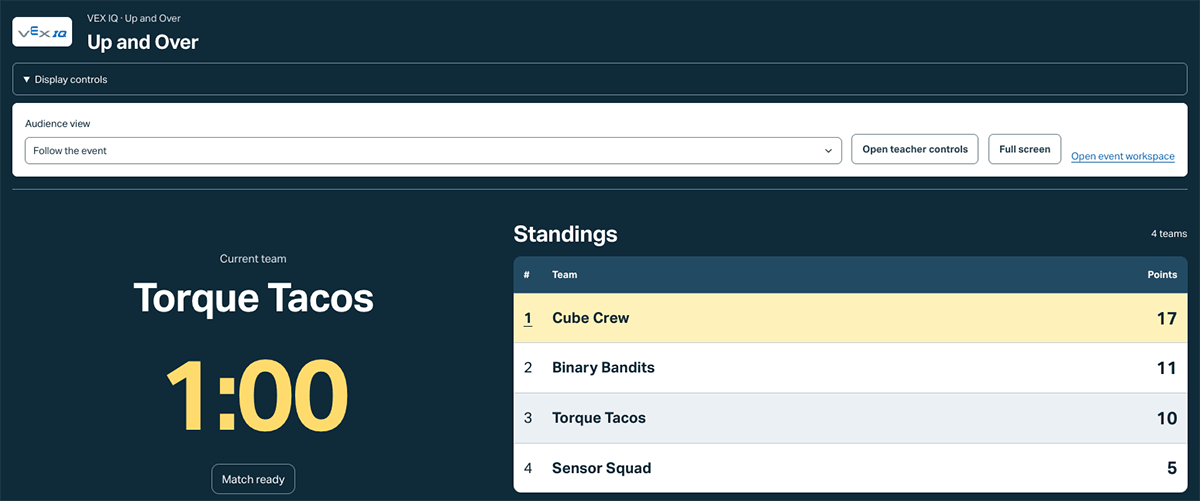
If scoring from the field is easier, a separate scorecard page can be opened on a tablet with its own timer, and the result is entered on the event page afterward. This can be useful when delegating scoring tasks to a student as well. The site continues to work offline, which is worth knowing when a competition moves into a gym or a hallway where the network is unreliable.
Spend Time Facilitating, Not Managing
This is the part that matters most. Because the timer, the scoring, and the standings are handled by the site, you are no longer stationed at a laptop announcing the clock. This gives you time to circulate through the room, observing students and facilitating their problem solving and communication. Competition day is then not just a fun culminating activity, but a meaningful learning opportunity, where you can guide students through data-based decision making processes to improve their performance and help them to use their mistakes as learning opportunities.
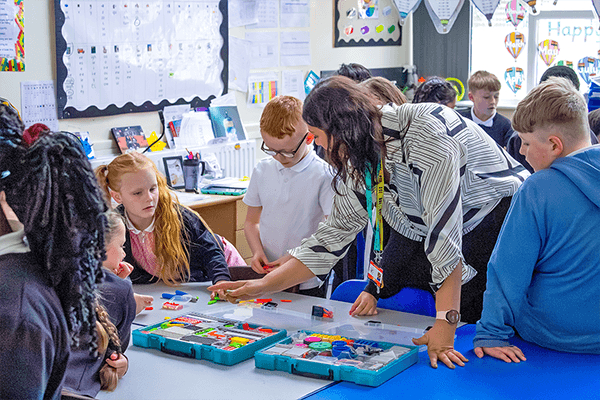
It also allows you to focus your attention on how students are interacting with one another, giving you information on where they need support in cooperative problem solving and allowing you to make sure all students are engaged and involved. The information you gather during a competition is great fodder for continuing to build students’ collaboration abilities once your event is finished.
Recognize More Than the Highest Score
Once a competition is complete, Classroom Games makes assigning awards quick and presenting them exciting. Although the Champion is automatically awarded to the team that wins a tournament or has the most points, the rest of the awards are customizable. Awards like Teamwork, Creative Problem Solving, and Great Sportsmanship can be assigned, or not, according to preference. Custom awards can be created so you can acknowledge students or teams that have made specific improvements or achievements that are meaningful to them.

Awards can be ranked from highest to lowest so that the presentation counts down to the top honor, with controls to reveal each winner. The awards ceremony can be a memorable event for students, where you control the buildup and can announce each award and the reasons for it before hitting the button to display the award for the class.
Certificates and a recap of the results can be printed at the end, so students leave with evidence of what they accomplished and you have a record of the event to build on next time.
Bringing competition into the classroom has always been about more than the final score. It is about giving every student the experience of testing an idea in front of others, adjusting it, and trying again. When the logistics of the event are handled for us, we are able to be present for that process, asking the questions that help our students grow into stronger coders, engineers, and collaborators.
What game would you like to share with your students first? How do you anticipate using VEX Classroom Games in your setting?
We are excited to hear what you think of VEX Classroom Games! Share your thoughts, plans and questions in the PD+ Community, or schedule a 1-on-1 Session to talk through running your first classroom competition.