


VEXcode 5: Built for Every Student
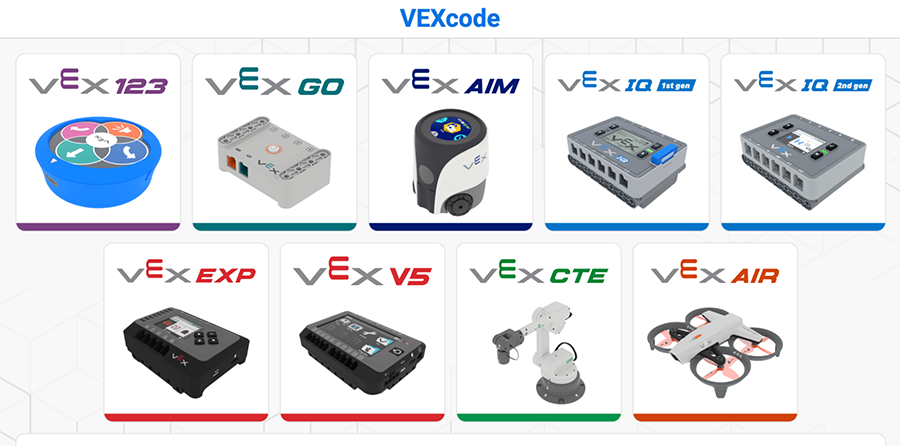
Most software updates add to what is already there. VEXcode 5 is a different kind of release: a complete rebuild of VEXcode, written from scratch, running in your browser at code.vex.com. The changes in the newest generation of VEXcode make coding accessible to every student, ensure consistency of use from one platform to the next, and let your students shape the VEXcode workspace to fit how they learn.

Every student and every classroom is different, and making VEXcode as easy as possible to use for all means students can focus on problem solving and understanding logic, rather than memorizing steps for using the software, or struggling to use a trackpad that just doesn’t work for them. This article explains how accessibility is the guiding principle for the VEXcode 5 rebuild, and how it can make your classroom experience with VEXcode more seamless.
Accessibility Throughout
VEXcode 4.0 introduced keyboard-only navigation as an experimental mode students could switch on. In VEXcode 5, full keyboard access is simply part of the application. Every part of the interface works without a mouse. When coding with blocks in VEXcode students can add, attach, move, and edit blocks from the keyboard. This means mouse and keyboard users can work side by side in the same project, and no one has to switch into a special mode.
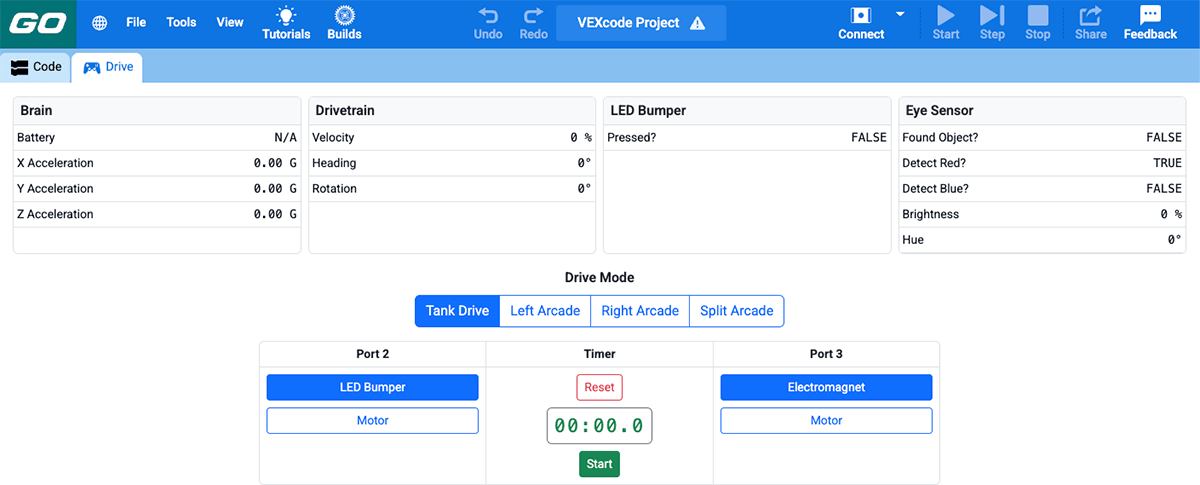
VEXcode 5 also closes some accessibility gaps that were hard to reach before. The VEXcode GO Drive Tab was redesigned so students can drive their GO robot from the keyboard. In VEXcode 5, the AI Vision Utility for EXP and IQ now includes a color picker, so color signatures can be set up with keyboard navigation, rather than dragging a box using a mouse or trackpad. On the hardware side, the Accessible Controller is now a configurable device in V5 robot configuration, and VEX GO supports the One Stick Controller.
To bring home the idea that the new accessibility features in VEXcode are options that all students can benefit from, introduce keyboard navigation to your whole class, not only the students whose support plans call for it. When the whole class knows how to use it, choosing it stops being a marker of difference and becomes a matter of preference.
One Environment Instead of Several
If your classroom uses more than one VEXcode platform, or you have students that are transitioning from one platform to another, this change will be a welcome shift. For all platforms, VEXcode 5 can be accessed at code.vex.com. This is a landing page that serves as the hub for coding with VEXcode, making it simple and easy to get started for all students.
Starting a project follows the same path for all users. Select your platform, choose Blocks or Python, name your project, then save it. Once that is done, VEXcode opens and project building can begin. This simplified process means once students learn how to get started, they don’t need to learn new procedures or processes, freeing both you and them up to get coding.
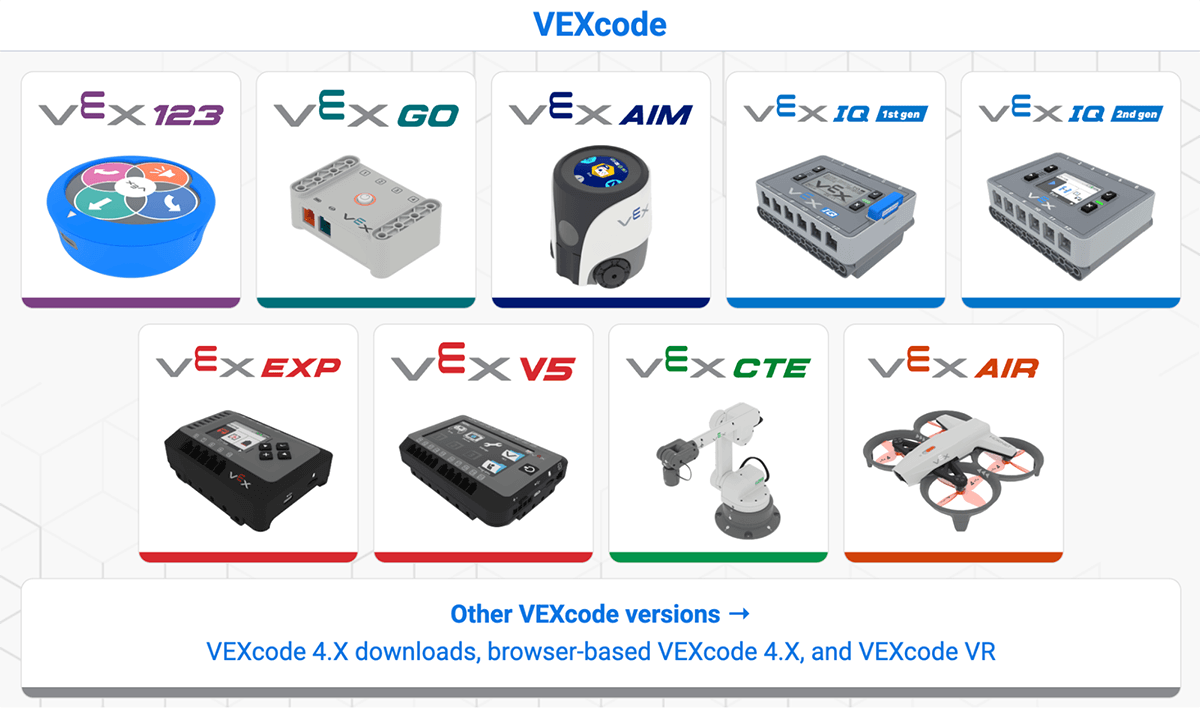
Connecting to VEXcode is consistent now, too. The dialog for connecting a Brain behaves the same way no matter which robot is being used. EXP and V5 Brains now can connect over Bluetooth directly from the browser, making the cable optional.
Customizable and Easy to Use
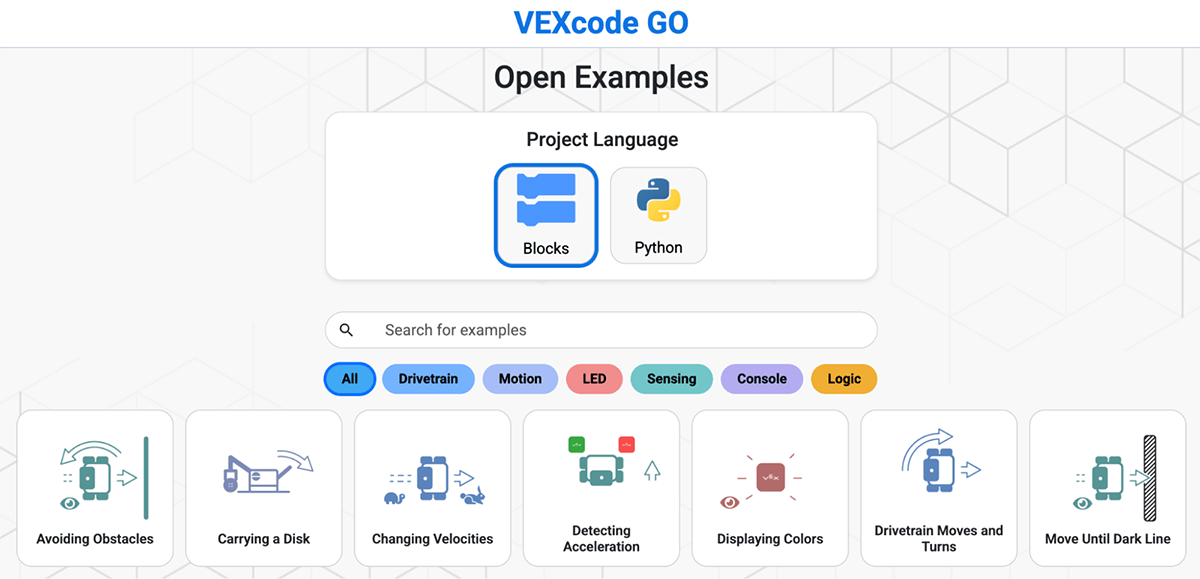
Finding things in VEXcode is now faster. Example projects now have a search bar, so a student can type the name of the example their lesson uses instead of scrolling for it.
Built-in Help links every Blocks and Python command across all platforms to the VEX API Reference. This means the help is always up to date, and students can rely on it to independently find answers to their questions about how a block or command works. This makes differentiation much easier as students have more agency in their learning and can work to their own current abilities.
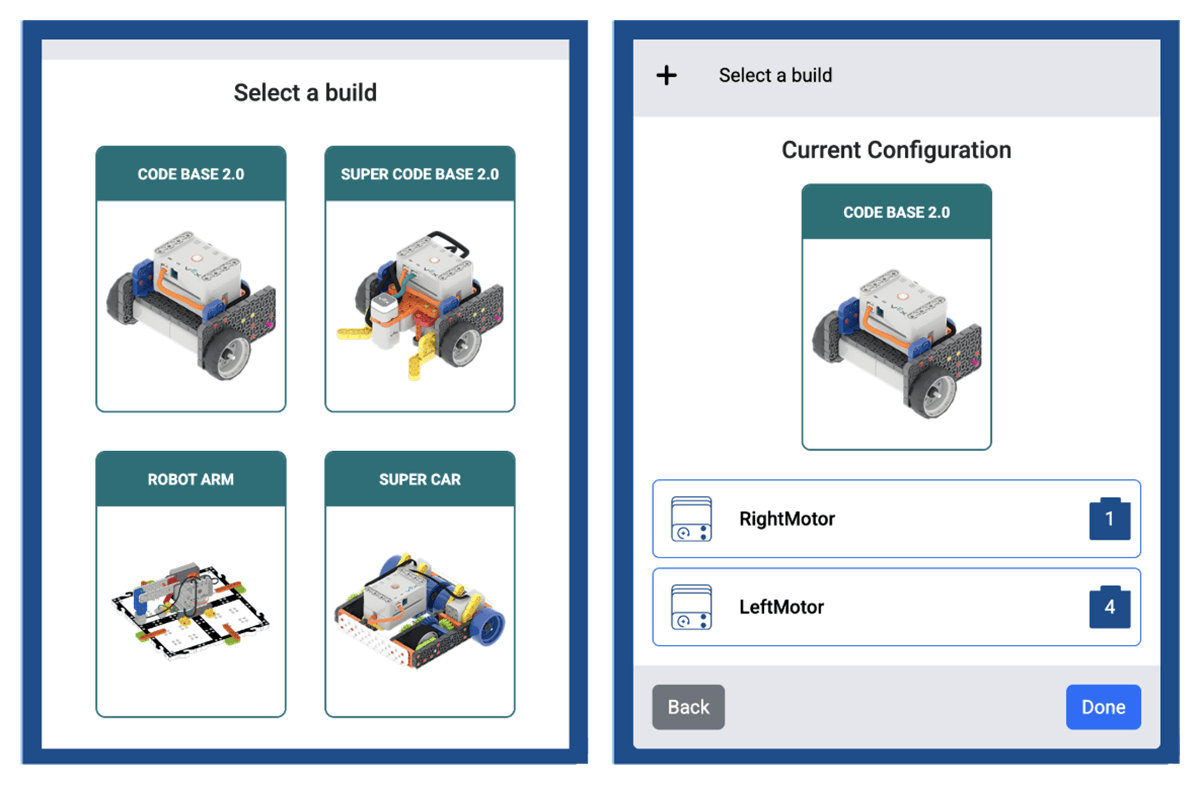
Another change that makes getting started easier for both students and teachers is preset builds in VEXcode GO, IQ, EXP and V5. Students can select a prebuilt robot configuration by looking for the photo that matches their robot, and the device panel fills in with every motor and sensor for that build, already assigned to the right ports. This season's Hero Bots are included (Flex and Flex (Sensors) for V5, Flop for IQ), along with builds from previous seasons, so a team that just finished building their robot can start coding right away as well.
Additionally students can now personalize their VEXcode workspaces to meet their own needs. Workspace tabs can be moved, resized, and closed, so they can arrange VEXcode in a way that gives them exactly what they need for a project, and nothing that might be distracting. It can also be easily reset by using View > Default Layout when needed.
And finally, Block sounds can now be muted! This allows you to cut down on overall classroom noise, preventing students (or you) from being overstimulated or distracted from too many noises.
Trying It With Your Students
VEXcode 5 is currently in beta, with more features and updates rolling out over the coming months. VEXcode 4 is still available and works as it always has, but the two aren't compatible, so any projects created in VEXcode 4 must be opened in VEXcode 4. Future updates include VEXcode VR, project sharing, C++ support, and Read Blocks Aloud.
As you get to know VEXcode 5, these two resources may be helpful:
- What's New in VEXcode 5 in the VEX Library carries the running changelog, including the platform-specific additions that arrive with each release.
- The VEX Accessibility Statement is there if you need documentation for a student's support plan.
Give VEXcode 5 a try and let us know what you think! Share what you notice in the PD+ Community, and if you would like help using any aspect of VEXcode 5, book a 1-on-1 session - we are happy to assist!